The Click and Clean is a browser extension for Google Chrome and other Chromium-based browsers, including Microsoft Edge and Brave. It lets you quickly delete browsing data such as browsing history, cookies, cached files, and other site data.
You can install the extension from the Chrome Web Store and use it whenever you want to clear selected browsing data with just a few clicks.
How to Use?
After installing the extension from the Chrome Web Store, pin its icon to the browser toolbar by following this guide. Once you have pinned it on the toolbar, you can use it easily by clicking on its icon as shown in the following screenshot:
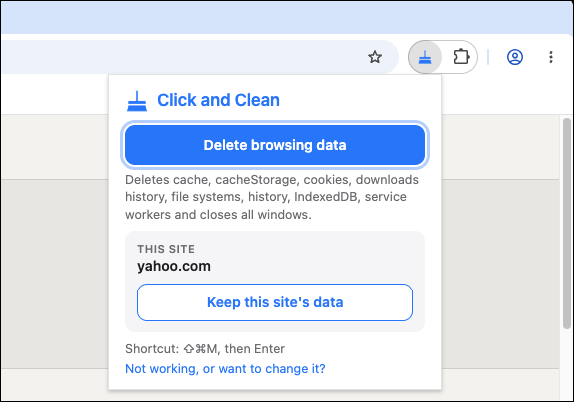
When using the extension for the first time, you need to select the desired browsing data types to delete with this extension.
The Click and Clean supports deletion of browsing history, cookies, downloads history, forms data, cached files, cacheStorage, localStorage, IndexedDB, file systems, and installed service workers. The extension can also close all open browser windows and tabs, including Incognito windows when Incognito access is enabled.
You can select the data types you want to delete and save your preferences from the Settings page linked in the extension popup:
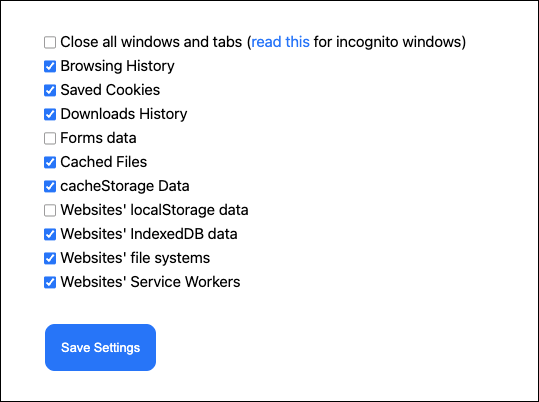
Once you have configured these options, the extension is ready to use. Now, whenever you want to clear your selected browsing data, click the Click and Clean icon in the browser toolbar and then click Delete browsing data.
Keyboard Shortcut
Click and Clean also supports a keyboard shortcut, making it even faster to delete your selected browsing data.
The default shortcut is:
- Windows and Linux: Ctrl + Shift + E
- macOS: Command + Shift + E
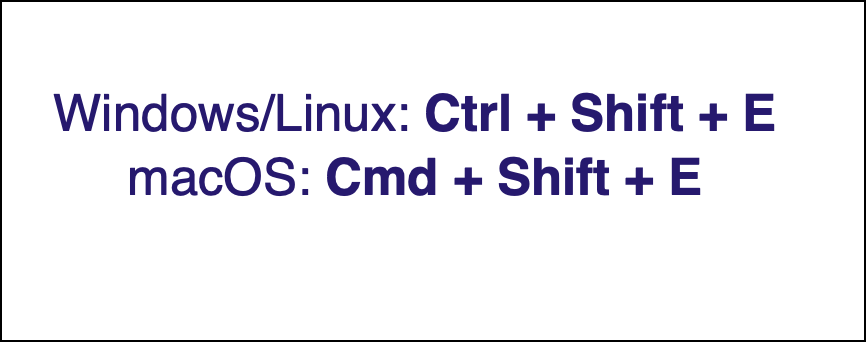
You can change the shortcut to another key combination if you prefer. Follow this guide to configure keyboard shortcuts for browser extensions.
If the default shortcut command does not work, try assigning a different key combination.
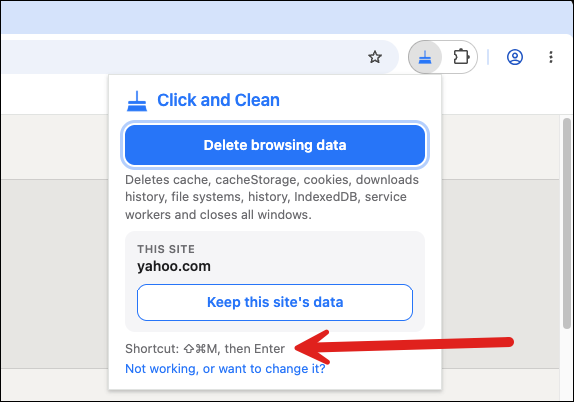
Your currently configured shortcut is also displayed in the Click and Clean popup:
Sites to Keep
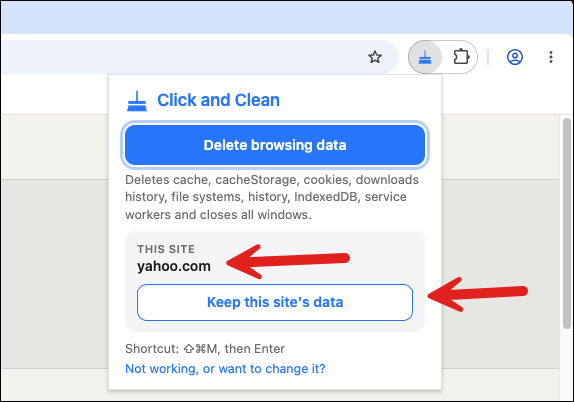
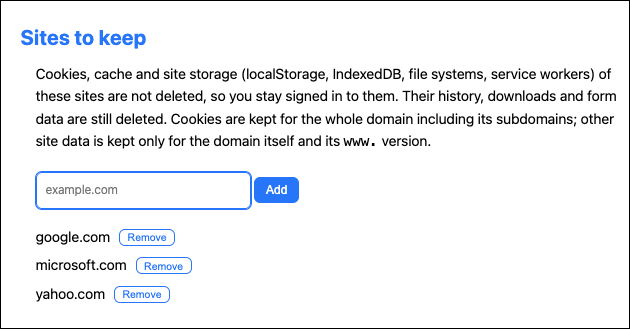
This feature lets you preserve cookies, cache, and site storage (localStorage, IndexedDB, file systems, service workers) for selected websites when clearing your browsing data. Users can whitelist desired domain names to stay logged in for these sites.
It is important to mention here that browsing history, downloads and form data are still deleted for these whitelisted sites.
To whitelist or un-whitelist a domain name, select the following option in the popup windows:
Users can manually add or remove whitelisted domains from the Settings page as well:
Incognito Windows
By default, this extension can only work with normal non-incognito browser windows and tabs. If you want the extension to close Incognito windows as well, you need to allow it to run in Incognito mode. Follow this guide to enable Incognito access for the extension.
Privacy
The Click and Clean is designed to perform its browsing-data cleanup functions without tracking your browsing activity. It is a lightweight extension intended to make clearing browser data faster and more convenient.
If you like this extension, then please rate and review it on Chrome Web Store. For any feedback or suggestion, email us at browsernative.apps@gmail.com or leave a comment below. Check our other extensions for Chrome, Firefox and other supported browsers.