The Chrome extension Delete Cookies and Site Data offers a streamlined and efficient way for users to take control of their browsing privacy. Designed for those who want to quickly clear data left behind by websites, the extension removes all stored site information with a single click or a simple keyboard shortcut.
It deletes all types of locally stored data, including cookies, appcache, cache, cacheStorage, indexedDB, localStorage, serviceWorkers, and webSQL, helping users maintain a cleaner, faster, and more private browsing experience.
How to Use?
Install the extension from here, and pin it to the browser toolbar following this guide. For quick access, users are encouraged to pin the extension icon to the Chrome toolbar. Now, users can click the extension icon to open its popup and delete browsing data as per their preference.
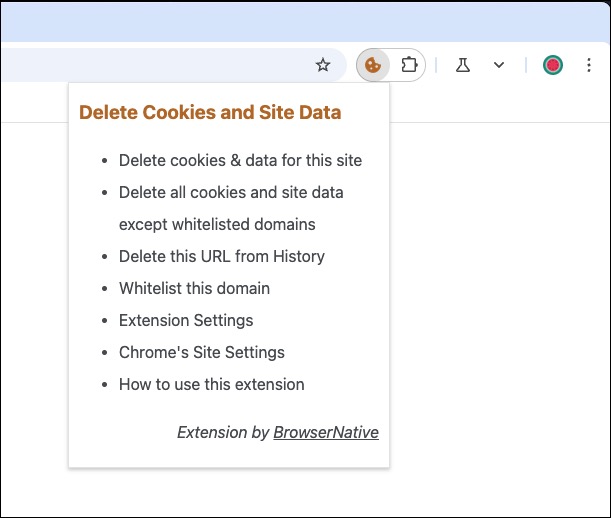
Users can delete all browsing data stored by the current website, or choose to clear data from all sites except those they’ve added to their whitelist.
Whitelist Domains
Whitelisted domains are websites that users have explicitly chosen to exclude from data deletion. When a domain is added to the whitelist, any cookies, cache, local storage, or other site data associated with it will be preserved, even when the user clears data from all other sites. This feature is especially useful for trusted websites where users want to stay logged in, retain preferences, or avoid reloading large amounts of cached content.
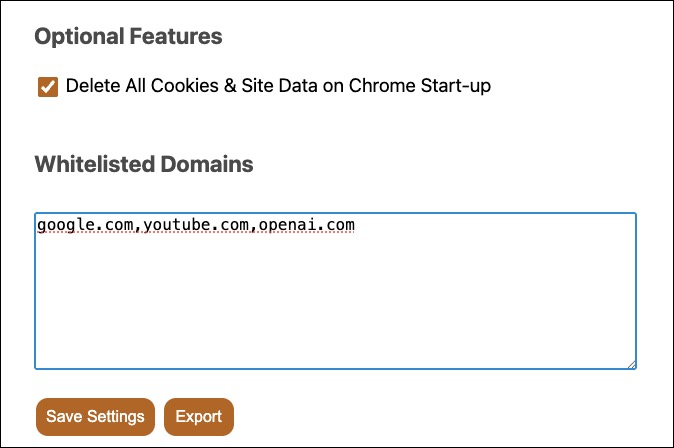
To whitelist a domain, simply choose the option “Whitelist this domain” in extension’s popup window as shown in the above screenshot. To manage your whitelisted domains, open the extension’s settings page using the link provided in the same popup window.
See Stored Data
To see which websites have stored cookies and other browsing data on your computer, visit Chrome’s site settings page using the provided link, or manually type chrome://settings/content/all in the address bar.
Keyboard Command
The extension offers a built-in keyboard shortcut: Alt + Shift + D to delete browsing data stored by all domains except the whitelisted ones. This makes the extension very handy. If this key combination doesn’t work for you or you’d prefer a different one, you can customize it by following this tutorial.
Automatically Delete Browsing Data on Startup
The extension includes an optional setting to clear browsing data of all domains (except the whitelisted) each time the browser starts. This helps keep your browsing environment clean without any manual effort. You can enable this feature from the extension’s settings page. Keep in mind that, depending on the amount of stored data, it may slightly slow down browser startup.
The Delete Cookies and Site Data is a simple but effective extension for anyone who wants more control over their browsing privacy. It makes it easy to clear data from websites while still letting you keep important sites safe through a customizable whitelist.
The extension is very lightweight, privacy-friendly, and doesn’t track users in any way. If you find it useful, please consider supporting us by leaving a rating and review on the Chrome Web Store. For any feedback or suggestion, leave a comment below.
Can you add an option in the settings to disable the notification toast?
I tried blocking notification via site settings but the option there will immediately reset to 'Allow' on change.
Love the extension except for one thing. The notification nag when auto clearing at startup. Any chance you can add a shutoff switch for it in the extension separate from the all browser notifications which are useful? Works perfectly other than that annoyance. One of the few selective cookie clearing extensions that does what it says, thank-you.