Sometimes a simple screenshot extension isn’t enough, especially when you need to capture an entire web page, not just what’s visible on the screen. Fortunately, Google Chrome’s built-in Developer Tools (DevTools) makes this process quick and easy. This method should work in all Chromium-based browsers like Microsoft Edge, Opera, Brave and Vivaldi.
Here’s how you can take a full-page screenshot in just a few steps, without requiring any third-party application or extension:
Open DevTools: Right-click anywhere on the page and select “Inspect”, or press Ctrl+Shift+I (Windows/Linux) or Cmd+Option+I (Mac)
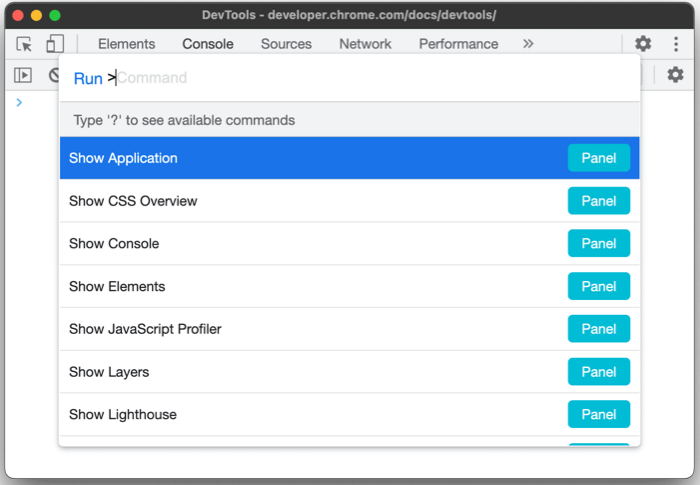
Open Command Menu: Chrome’s DevTools offers a command menu to quickly execute several commands. To open this, press Ctrl+Shift+P (Windows/Linux) or Command+Shift+P (Mac).
Run The Command: Now, type screenshot in the command menu as shown in the following screenshot, and choose “Capture full size screenshot” option to take full-page screenshot of the current tab. This would capture and save the screenshot of entire web page.
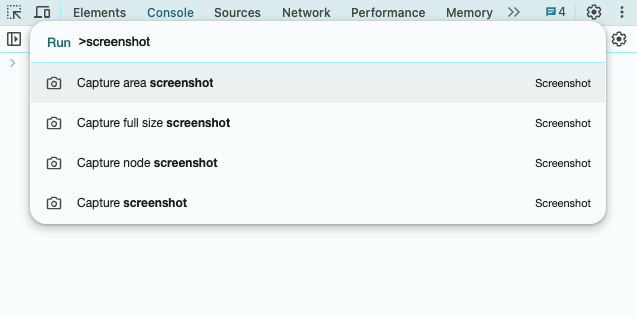
You can also choose other options to capture area screenshot, node screenshot etc.
One of the best things about this method is that it’s completely built into Google Chrome, no need to install any third-party extensions, tools, or apps. Everything you need is already available in the browser by default, making it a quick, secure, and reliable option for capturing full-page screenshots without cluttering your tabs.