“Go Incognito” is a highly useful extension for the Google Chrome browser. It allows users to easily open the current Chrome tab in the incognito mode. Designed specifically for users who want to seamlessly switch from a regular Chrome tab to an incognito window, this extension makes private browsing as simple as a click or keypress.
When you activate the extension (using its toolbar button, the context menu option, or the Alt + I keyboard command), it opens the current tab in a new incognito window. Additionally, it closes the current tab, removes it from your browsing history, and provides options to modify this behavior if desired.
How to Use This Extension?
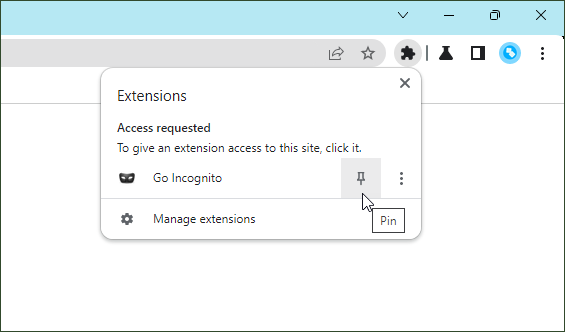
Start by downloading the extension directly from this Chrome Web Store page. Once it’s installed, it’s important to pin the Go Incognito icon to your browser’s toolbar so it’s always within reach. Chrome does not display new extension icons by default, so you’ll need to manually pin it. This simple step ensures that the extension is visible and accessible whenever you need it. If you’re not sure how to do this, a detailed tutorial is available to guide you through the process.
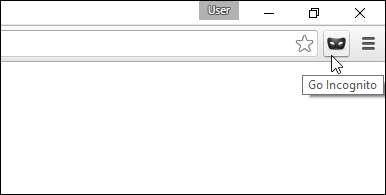
To open the current tab in an incognito window, click on the extension’s toolbar button as shown in the screenshot below:
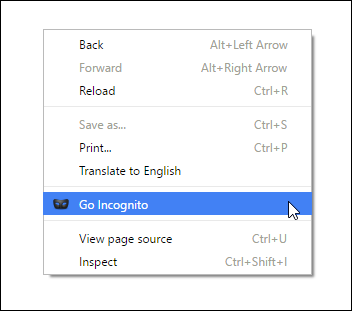
Alternatively, right-click anywhere on any web page and select the “Go Incognito” option from the context menu:
Keyboard Shortcut
The “Go Incognito” Chrome extension provides a keyboard shortcut command: Alt + I. This allows you to quickly open the current tab in incognito mode. If this key combination is not working for you, or you would like to change it to another combination, follow this guide.

Change Extension Settings
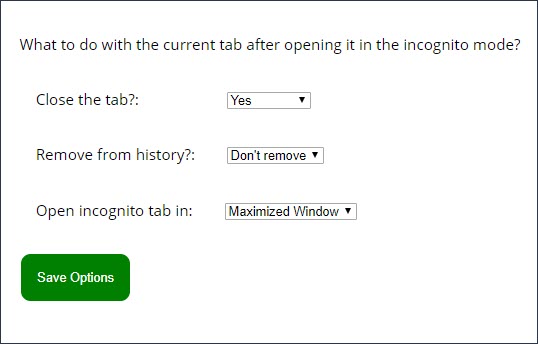
By default, this extension closes the current tab and removes it from your browsing history. However, if you prefer, you can configure it to keep the tab open and preserve it in your history. To customize this setting, visit the extension’s Options page. You can modify this option at any time.
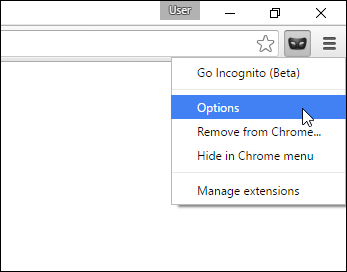
To change the above default setting, right-click on its icon in the toolbar, and select “Options” from the context menu that appears, as shown in the screenshot below. This will open the options page for Go Incognito.
By removing the tab from your history and streamlining the process of opening incognito windows, it minimizes the chances of leaving behind traces of sensitive browsing. This makes it ideal for students, professionals, or anyone who shares their computer with others.
Reverse Functionality: Open Incognito Tab in Normal Browsing Mode
This extension can also be used to open an incognito mode tab in normal browsing mode by granting it the “Allow in Incognito” permission from Chrome’s extension page (chrome://extensions). Once you enable this setting, the extension’s icon will be visible on the toolbar in incognito mode as well. Simply click the icon to open an incognito tab in normal mode.
Note that all Chrome extensions are disabled by default in incognito mode, but you can enable them manually on an individual basis.

Required Permission
This extension requires permission to access your browsing history. While this may concern privacy-conscious users, we would like to clarify that the extension does not actually access your browsing data. The history permission is necessary for the extension to remove URLs from your browsing history. We do not track our users in any way and you can use the extension with confidence.
Incognito This Tab
If you do not want to grant permission for your browsing history, we suggest using our “Incognito This Tab” extension. This extension opens the current tab in an incognito window, but does not close the tab or remove it from your browsing history.
What is Incognito Mode in Google Chrome?
The Incognito mode in Google Chrome is a popular feature that allows users to browse the internet privately without their browsing history or personal data being stored on their device. Read more about incognito mode of Google Chrome.
Benefits of Chrome’s Incognito Mode
While incognito mode doesn’t make you fully anonymous online, it limits some tracking capabilities. Cookies, for example, are temporary and isolated from the main browser session, which reduces the data advertisers can use to track you across sites. Additionally, Chrome now blocks third-party cookies by default in incognito mode.
Incognito browsing allows you to sign in to the same site with different accounts simultaneously. This is useful if you need to check multiple email accounts or use different logins without affecting your regular browsing session.
While in incognito mode, Chrome keeps cookies and site data temporary, removing them as soon as you close the window. This prevents sites from tracking your actions across multiple visits and avoids personalized recommendations or login persistence.
It’s perfect for anyone who frequently switches between regular and private browsing sessions, whether you’re doing research, shopping, or managing multiple accounts.
Support
If you like this extension, please rate it 5★ on Chrome Store. Have any feedback or suggestion? Email us at browsernative.apps@gmail.com.