The “Open in Kaggle Notebooks” browser extension enables users to easily open any online Jupyter notebook in the Kaggle Notebooks environment. It is available for Google Chrome and other Chromium-based browsers, and can be installed from the Chrome Web Store.
Jupyter Notebook, Google Colab and Kaggle
A Jupyter notebook file is technically just a JSON text file with .ipynb extension. If you open it in a plain text editor, you’ll see structured JSON objects with keys like cells, metadata, and nbformat. It is widely used by data scientists, artificial intelligence and machine learning researchers, and developers to combine code, text, and visualizations in one interactive document. On supported platforms, users can write and even execute code in languages like Python, Julia, or R.
For a cloud-based solution to Jupyter notebooks, Google Colab has long been a favorite among learners and researchers due to features like free GPU and TPU access, seamless Google Drive integration, and zero setup in the browser. Kaggle Notebooks, however, are gaining popularity for their direct access to thousands of public datasets, vibrant community sharing, and integration with machine learning competitions hosted on Kaggle.com itself.
Google Colab offers a handy feature to load Jupyter Notebooks directly from GitHub.com, making it easy to access shared projects. Kaggle Notebooks, on the other hand, provide a broader option by supporting notebooks hosted anywhere online, not just those on GitHub. This feature enables users to open online notebooks directly in Kaggle without the need to first download and then upload them.
Our Extension
As mentioned earlier, our “Open in Kaggle Notebooks” browser extension helps you to quickly open online Jupyter notebooks in the Kaggle Notebooks environment.
Once you have installed it successfully, pin its icon to the browser toolbar following this guide. Now, you can use this extension in two ways:
- Use browser toolbar icon
- Use context menu (right click menu) option
Using browser toolbar icon
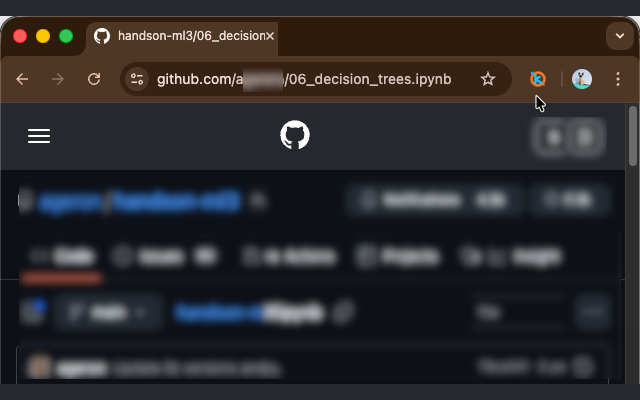
Go to any webpage that hosts a Jupyter Notebook file. For examples:
Once you are on the desired page, click on the extension icon to open this notebook in the Kaggle Notebooks. Kaggle will automatically import the notebook in a few seconds, and then you can review the runtime settings and execute it.
The toolbar button works for any URL ending with the .ipynb extension.
Using context menu
Right-click on any direct link to a *.ipynb *file, and select the “Open in Kaggle Notebooks” option in the appeared context menu. This should open a new tab for Kaggle Notebooks, and begin importing that specific file similar to the step above. For example, you can right-click on this link to a .ipynb file, and see this in action.
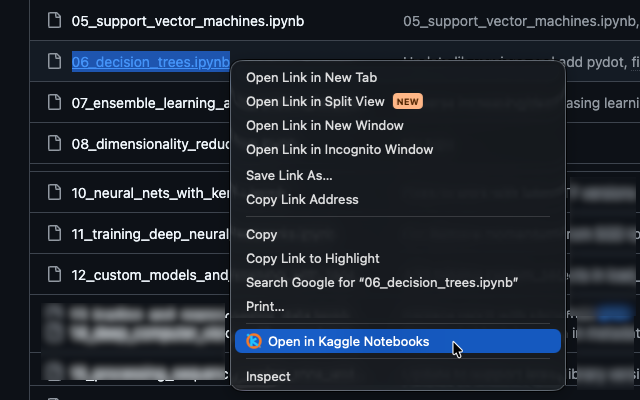
The “Open in Kaggle Notebooks” extension streamlines AI and ML research workflow by letting you open any Jupyter notebook from the web directly in Kaggle with a single click. It removes the friction of downloads and uploads, giving instant access to a ready-to-use environment with pre-installed libraries and datasets.
If you find this extension helpful, please consider reviewing and rating it on the Chrome Web Store. Feel free to send us any comments or feedback.