The Simple Privacy Settings is a Chrome privacy and security extension. It is the easiest way to control your browser’s privacy and security settings.
Install The Extension
This extension is available for Google Chrome browser, and users can install it from this Chrome Web Store page. Users of other Chromium-based browsers like Microsoft Edge, Vivaldi, Brave and Opera can also install and use this extension from the above link. We are trying hard to release it for other browsers like Mozilla Firefox and Safari.
Pin on Toolbar
Once you have installed it successfully, you need to pin its icon on the toolbar. Check: How to pin Chrome extension on the toolbar?
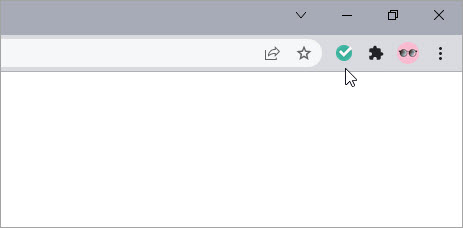
Pinning the icon is required only for the Google Chrome. Users of other browsers will notice its icon immediately on the toolbar.
How To Use
Once you have the extension icon on the browser toolbar, as shown in the above screenshot, you are ready to use the Simple Privacy Settings extension.
Click on this icon to launch the extension page, where you can find all the options offered by it.
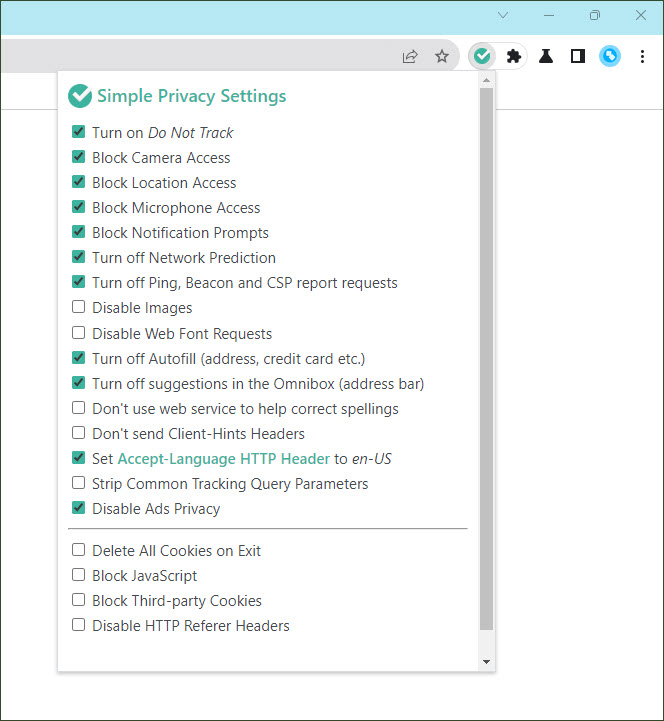
Nothing complicated, just select or deselect any setting to enable or disable it.
The Simple Privacy Settings extension enables user to easily configure following browser settings:
- Delete All Cookies on exit
- Turn on Do Not Track
- Block Camera Access
- Block Location Access
- Block Microphone Access
- Block Notification Prompts
- Turn off Network Prediction
- Turn off Ping, Beacon and CSP report requests
- Disable Images
- Disable Web Font Requests
- Turn off Auto-fill in forms (name, address, credit card etc.)
- Turn off suggestions in the Omnibox (address bar)
- Don’t use web service to help correct spellings
- Don’t send Client-Hints Headers
- Set
Accept-LanguageHTTP Header toen-US - Block JavaScript
- Block Third-party Cookies
- Disable HTTP Referer Headers
- Disable Ad Privacy
Understand Privacy Settings
Delete All Cookies on Exit
Enable this option to delete all cookies when you exit Chrome. While cookies are essential for functional websites, these are often used for tracking users. You can enable this option to ensure that Chrome deletes all saved cookies when you close it.
Important: This would also log-out you from all the websites. So enable this option with a little caution.
Turn on Do Not Track
When you enable the “Do Not Track” feature, Chrome will send an additional HTTP header (DNT: 1) with all web requests. This tells websites that you don’t want to be tracked. Well, it is upto the websites to honor your this request, so don’t expect much here.
Disable Ad Privacy
Chrome has recently introduced “Ad Privacy” settings, which allow users to control three privacy options: Ad Topics, Site-suggested Ads and Ad Measurement. You can turn off all these three privacy options using this extension. Select the “Disable Ad Privacy” checkbox to turn off above settings.
More content coming soon …
Can you add screen resolution api to the settings?
Am eager to be able to read descriptions for ALL Privacy Settings!
Can you add an extension checker that checks your current extensions for malicious or potentially dangerous extensions?
works as expected in Google Chrome on Windows, but fails to override some settings in Edge browser
Thanks keep up the good work
Thanks for this superb addon. Wish it has a whitelist for certain sites like youtube, who withou java refuse to work properly, at all.