The Snippets Manager is a user-friendly Chrome extension that allows you to save frequently used text snippets for future reference. This simple yet powerful tool acts as your personal clipboard, enabling you to store important chunks of text that you can easily retrieve and copy whenever needed. No more searching through old documents or typing the same phrases repeatedly.
In today’s fast-paced digital world, efficiency is key. Whether you’re working on a project, writing emails, or conducting research, having quick access to frequently used text snippets can save you precious time. This powerful and essential Chrome extension is designed to make your work more streamlined and efficient.
How To Use?
Start with installing the Snippets Manager extension from this link. It works with Google Chrome and other Chromium-based browsers including Microsoft Edge, Brave etc. Once installed successfully, you should pin its icon on the browser toolbar by following this tutorial.
Now, as you have installed the extension, and pinned its icon on the toolbar, you are ready to use it. Click on the extension’s icon on the toolbar, which would launch its popup as shown in the following screenshot.
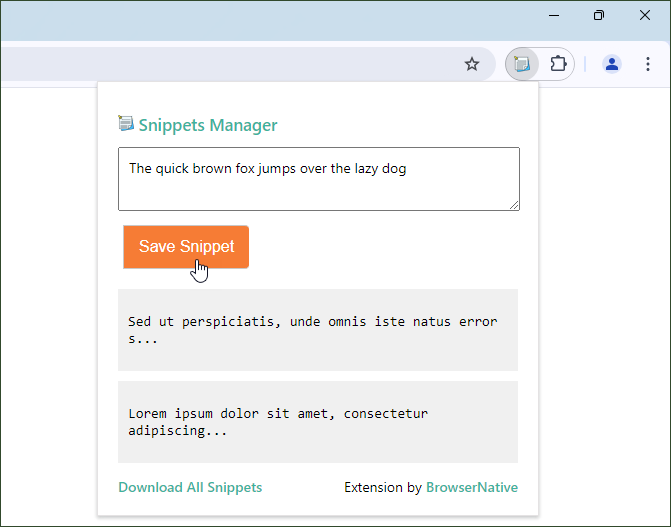
You can quickly save any text snippet by either copying and pasting it into the extension, or manually typing it in. The snippets are saved in a clean, organized list, making it easy to find what you need. Whenever you want to use a saved snippet, simply open the extension, hover your mouse pointer on that snippet, and click on the appeared ‘Copy’ button. It’s automatically copied to your clipboard and ready to paste wherever you need it.
You can also edit, view or delete saved snippets using the corresponding buttons as shown in the above screenshot.
Use Context Menu to save snippets
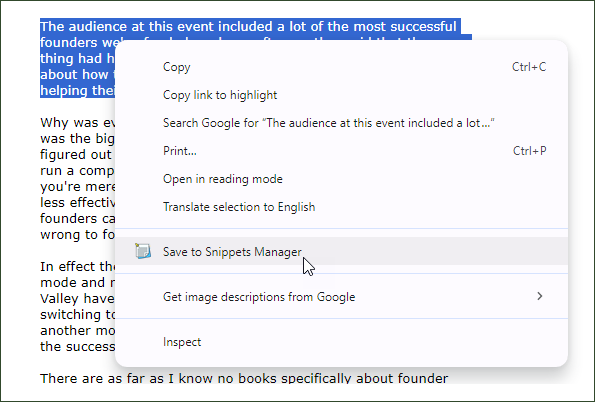
You can also save text snippets by using the context menu. Just highlight any text, and right click on it. Now select the “Save to Snippets Manager” option in the appeared context menu. This would save the highlighted text to the extension.
Note that text saved through context menu option doesn’t retain line breaks and other certain formatting data.
Your Data
All the text snippets saved in this extension are stored locally on your computer only, ensuring that your data remains private and secure. You can take backup of saved snippets as well.